
You must always backup your Android phone and ensure all the information in your smartphone is safe. Nowadays, we use the smartphone for everything, it also acts as a hub. We think, is backing up the phone important? We must always spend few minutes and make sure that your mobile is backed up. Your mobile may get lost or stolen, it might accidently break, or you might want to change to a new Android mobile. So, it is mandatory to always backup your Android phone.
Earlier, there were many steps involved in backing up your phone. But now you can accomplish it quickly by just following few steps. There are also many apps that help to complete the transfer task. So, backing up an Android mobile is no longer a tedious process.
Steps to follow while backing up your photos:
Many of us store lots of selfies, groupies, family outing photos in our mobile. These memories bring in a lot of joy every time you see them. So, make sure you don’t lose these photos.
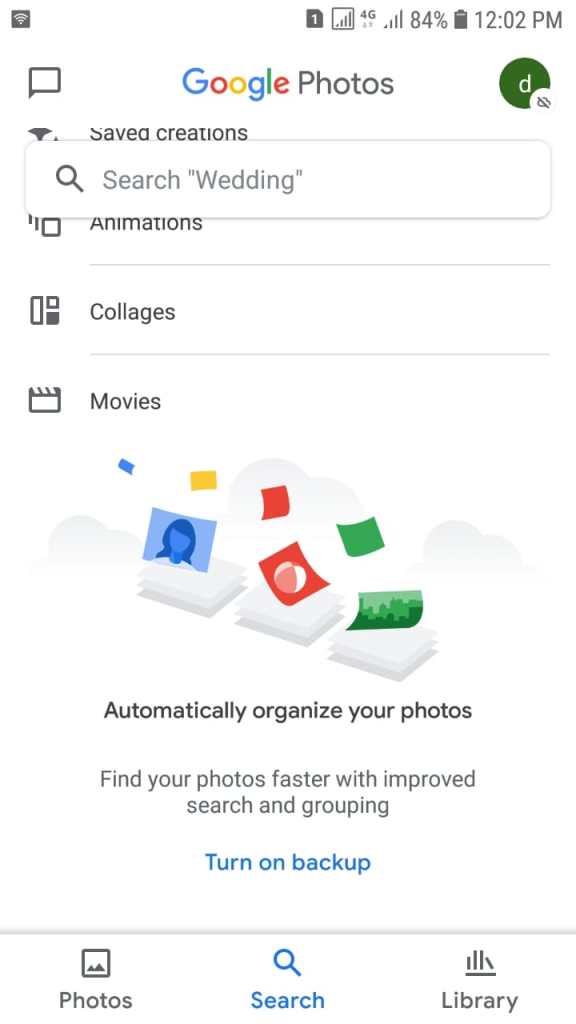
- First, open Google photos app on your Android mobile.
- Then, sign-in to your Google account.
- Now, go to search tab and then click ‘Turn on backup’.
- Choose anyone option from the settings, original quality, high quality, express.
- The photos begin to sync.
If this is the first time you are using Google photos app then it takes some time. These photos are backed up in the cloud on your google account. So, all your photos are safe and you can view them anywhere using your google account details.
How to back up your contacts?
We don’t even remember more than five contact numbers. All we do is just click on the name to call. In this case protecting the contact details on your Android device is important.
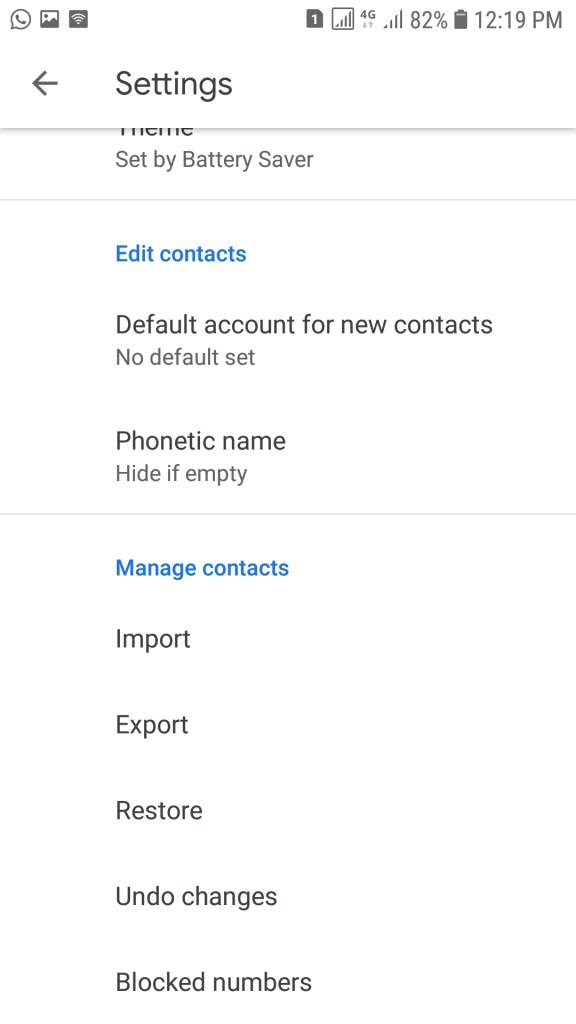
- Click on ‘Google Contacts’, certain smartphones have this app by default. Else you must install it from Google Play.
- Go to the menu that is present at the top-left and then go to settings.
- Now, you can import, export, or restore the contact details.
How to upload folders and files to Google Drive?
You can use google drive to store your word documents, pdfs, presentations, and other documents. Google drive provides 15 GB of free storage. If you need extra storage then you can buy monthly plans and annual plans.
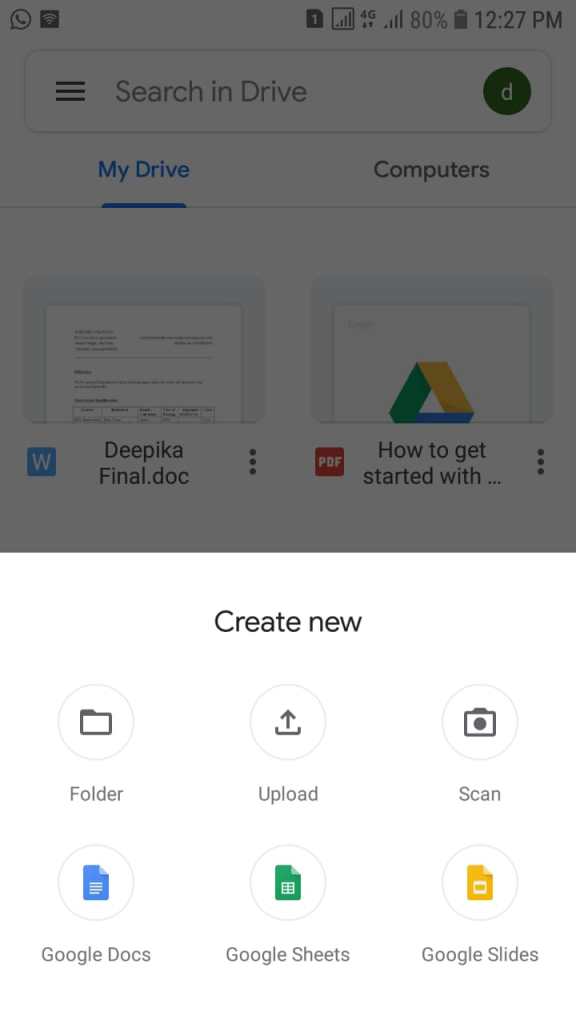
- First, open Google Drive
- Spot a ‘+ icon’ in the bottom-right and tap it.
- Click on ‘Upload’ and then choose all the files that are to be backed up.
Another alternative to Google Drive is ‘Dropbox’. You can download it from Google Play store. The steps are simple but Dropbox offers only 2GB of free storage space. If you want further space then you must avail the paid plans.
How to back up text messages?
Currently, many of us are not using text messages to chat with our family and friends. We have already started using other messaging platforms. Yet, it is important to save your old messages.
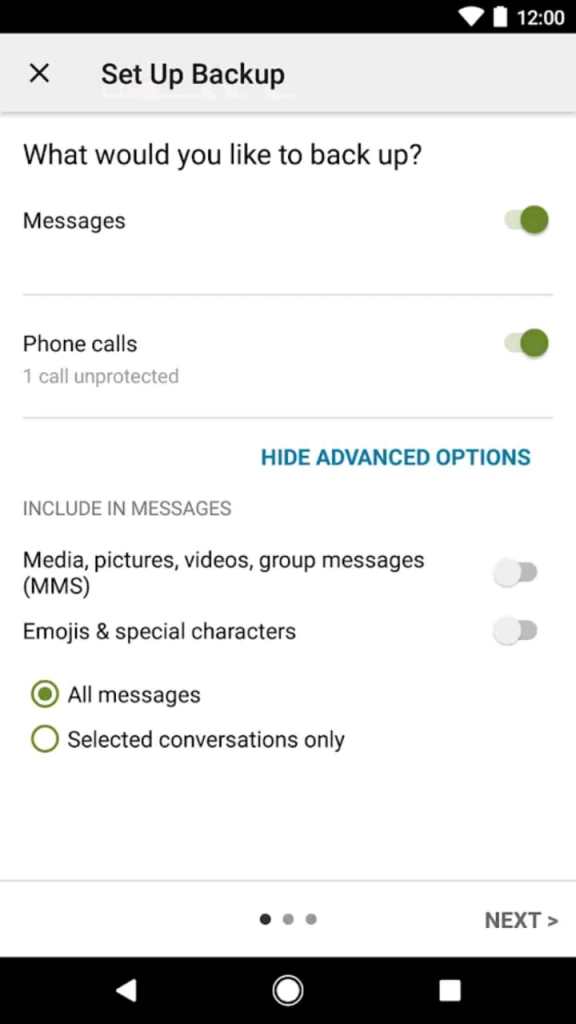
- Download and install ‘SMS Backup & Restore’ app from Google play.
- Then, open the app and tap ‘Set up a Backup’.
- Apart from messages you can also store call history details.
The need for backing up your Android mobile might rise anytime. So, plan it before and protect your data. Backing up your mobile might also help you to restore your mobile settings without losing the data. The above steps are simple and easy to complete. Apart from this there are many other apps involved in restoring and backing up the data. There might also be small variations in the steps with different Android versions.



 Digiteks
Leave a comment