
Have control over your background while attending a video conference.
Many of us are still working-from-home and video conferencing has become a major part of business communications. There is an option of using a virtual background so that you can avoid showing your messy room. So, now let’s have a look at how to use the virtual background in Skype, Zoom, and Microsoft Teams.
You must follow these steps while you are using the Skype desktop app.
- Open Skype application.
- Then, click three dots which is present at the right to your name.
- Now, click ‘settings’ and then ‘Audio & Video’. In the right pane options like background, microphone, and speakers are present.

- You can choose your favorite background from the available options. Besides, you can also make use of the blur option.

- Also, you can click on the ‘+’ icon to add any other background images.
This feature is out there only on the desktop app. So, you cannot change the background in the Skype Android mobile app. However, if you are an iOS user then it is possible to blur the backgrounds while using Skype.
Currently, Zoom is one of the most popular video conferencing app. Many schools and colleges use this app for online learning.
- Open the Zoom desktop app.
- Then, click on the settings icon that is on the top-right of the screen.
- From the left pane in the settings window, click on ‘Background & Filters’.
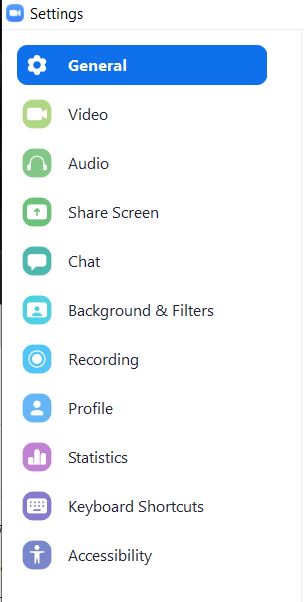
- Now, there are two tabs, Virtual Backgrounds, and Video Filters. You can pick any one static image or a video from the available options. You can also click the ‘+’ icon and add a new image as the background.

- Then, in the video filters tab, there are some Instagram or Snapchat style filters.
You cannot change the background while using the Zoom web client. But iOS users can pick a virtual background. Overall, in Zoom the option of blurring the background is not available.
You can change the background before you join the meeting or while you are on the call. Another feature in Microsoft Teams is that both the options of changing the background or blurring the background are available.
- Open the Microsoft Teams app and then click on the settings icon.
- A list of background images is at the side panel. You can also make use of the option ‘blur effect’.
- If you want to change the background after joining the meeting then click on the three dots.
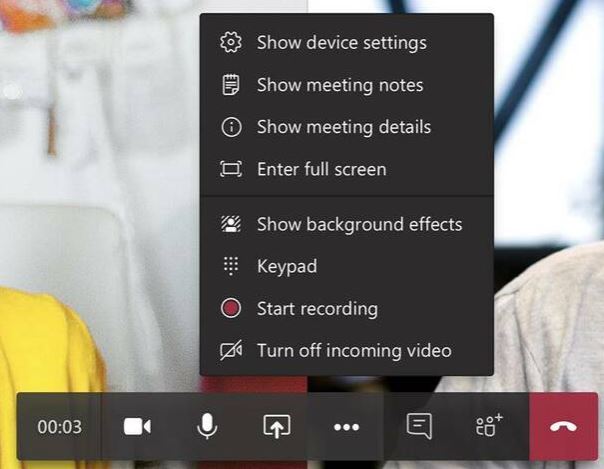
- Choose ‘Show Background Effects’.
- Now, you can preview new backgrounds. Choose your favorite new background, preview it, and then just click it to apply the new changes.
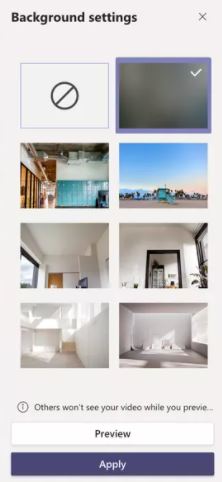
Changing the background options in video conference help us to set up the correct scenario. For example, if there is a virtual office party or birthday party, you can choose a fun-filled or celebrative background. In the case of a client meeting, you can pick an office background. Besides, you can just blur the background or just add a plain color background. So, just check out these options and start customizing your background.




 Digiteks
Leave a comment