You can find many Android apps in the Google Play Store. From science, entertainment, or education you can spot many useful apps. But you can find all these apps on iOS or other platforms. Sometimes, you might want to use these Android apps on your personal computer. Is it possible? Yes, with the advance in technology now you can use Android apps on your personal computer. Moreover, using these apps on a desktop or laptop helps in multitasking.
Use BlueStacks Android Emulator
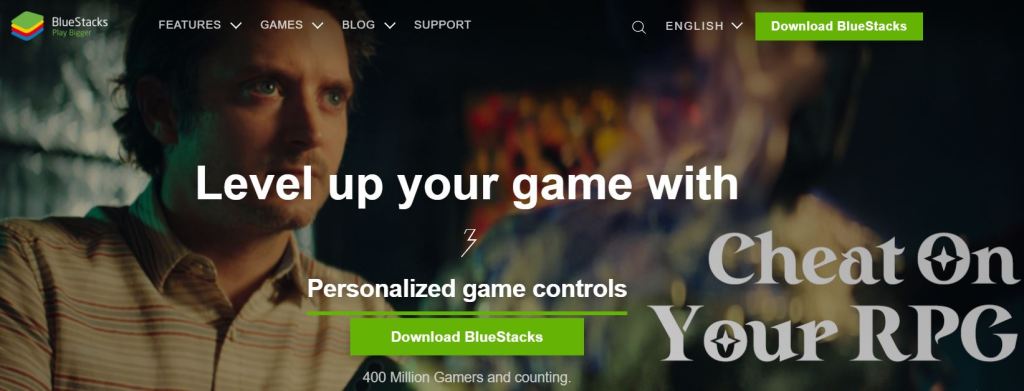
You can use an Android Emulator ‘BlueStacks’ to use Android apps on your computer. First, go to this link ‘BlueStacks Download’ and then install the application. The process is simple and you can start accessing your apps on the computer. Go to the BlueStacks homepage and type the name of the Android app or the name of the game on the search bar. Now, pick the desired app and install it.
You can find the app on the BlueStacks home screen. Just double click on it and start using the app from your desktop or laptop. If you want to enjoy your favorite Android game on your desktop that does not have a desktop version then use BlueStacks Android emulator. Finally, BlueStacks is compatible with both Mac and Windows.
Use Samsung Phone and Your Phone App
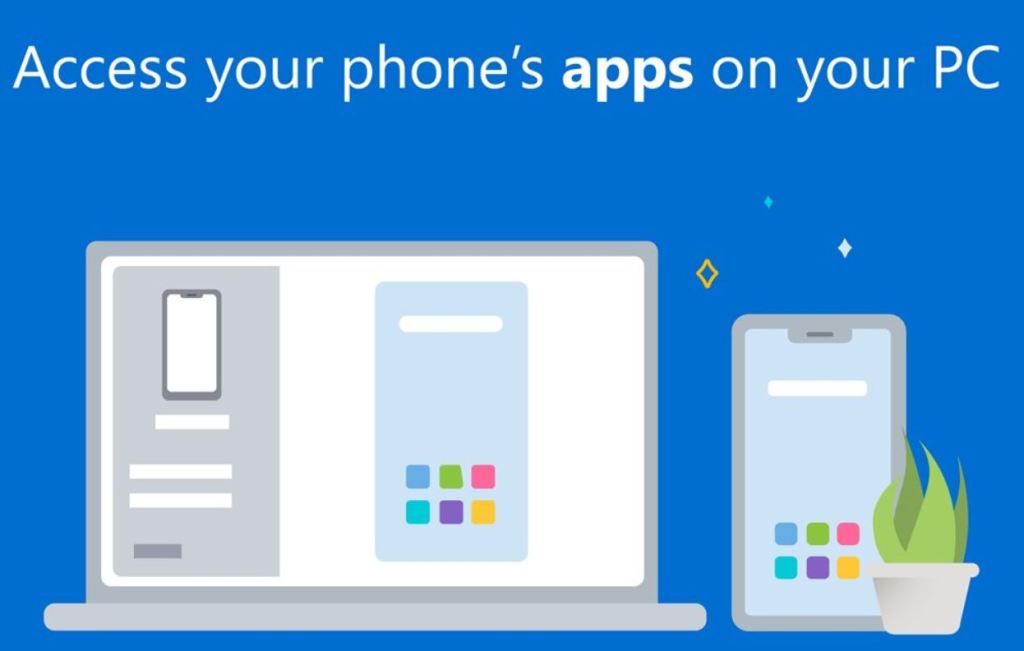
If you use the latest Samsung phone and the latest version of Windows on your computer then this is the best method. Make sure both your Samsung mobile and the Windows desktop are connected to the Wi-Fi.
Download Your Phone app from Microsoft’s store and then install it. After installation, make sure you ‘Sign In’ to your Microsoft account. In your Samsung mobile, go to the Quick Panel and then tap Link to Windows. It is usually present in all the latest Samsung models. Else, use the Google Play Store and download it. Use the Samsung smartphone and scan the QR code on your computer.
Once it is paired and connected, you can just drag and drop files from your phone to your computer wirelessly. Apart from this you can also receive and manage your notifications, make and receive calls from your PC, send and receive text messages. You can also access your recent photos from your mobile on your PC.
Use Genymotion Android Emulator
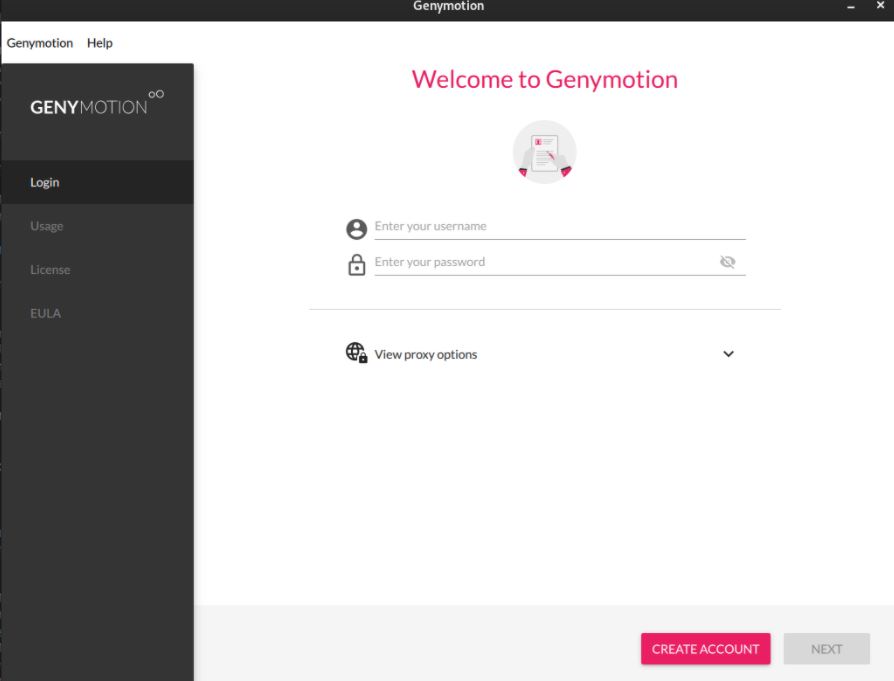
Developers use Genymotion as you can explore the complete Android Operating system. You can Download Genymotion Personal Edition from here. Another advantage of Genymotion is that you can use this with different versions of Android and also on different devices. Further, there are two solutions available, Genymotion Desktop and Genymotion Cloud. This allows you to run Android as a virtual machine in the Cloud. Overall, you can enjoy a streamed experience with Genymotion.
There are many other emulators available to help you run Android apps on your PC. If you own the latest Samsung mobile and use the new Windows version on your PC then Samsung’s Link to Microsoft is the best option. If you don’t have the above requirements then use BlueStack. Pick one method that suits you the best and start accessing your Android apps on your PC.


 Digiteks
Leave a comment