
Step-by-step instructions on how to recall an email in Microsoft Outlook.
Have you sent an email without attaching the required documents? Or have you sent an email to the wrong recipient? Wondering what to do next? Then, just make use of the recall option. With the correct scenarios met you can easily recall the email before the recipient reads it. Then, you can send the corrected email to the respective person. However, you cannot recall an email in Outlook on the web.
Before going to the steps on how to recall an email you must make sure that the below rules are applicable.
- The recipient must not have opened the email. The email must be delivered but the recipient should not have viewed it.
- Both the sender and the receiver must use Microsoft Outlook. You cannot recall an email if the sender uses Gmail, and the receiver uses Outlook.
How to recall an email in Outlook?
- First, create an email and sent it to a recipient within the same organization using Microsoft 365 or Outlook.
- Click on the ‘Sent Items’ folder that is present on the left sidebar of the Outlook window.
- Now in the sent items folder select the email that you want to recall.
- Then, double click on it. Now the email which is to be recalled is opened.
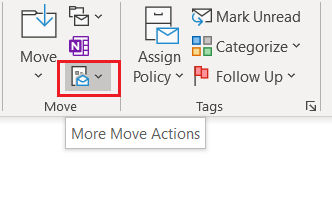
- Now click on the ‘More Move Actions’ icon. Then click ‘Recall This Message’ from the drop-down menu.
- In this step, you can choose from two options,
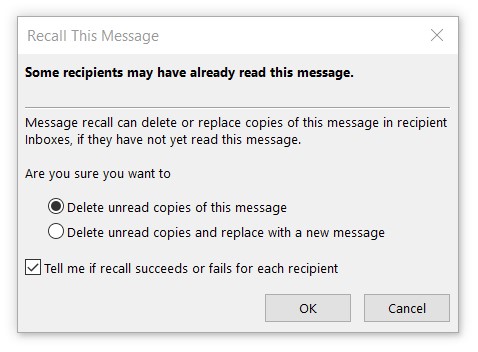
- “Delete unread copies of this message”- This option just deletes the wrong email that was sent.
- “Delete unread copies and replace with a new message”- You can immediately fix the problem with the previous email and send the corrected one.
- You can check the ‘Tell me if recall succeeds or fails for each recipient’ checkbox. You will receive an email from Outlook regarding the result of the recall, was the recall successful or not.
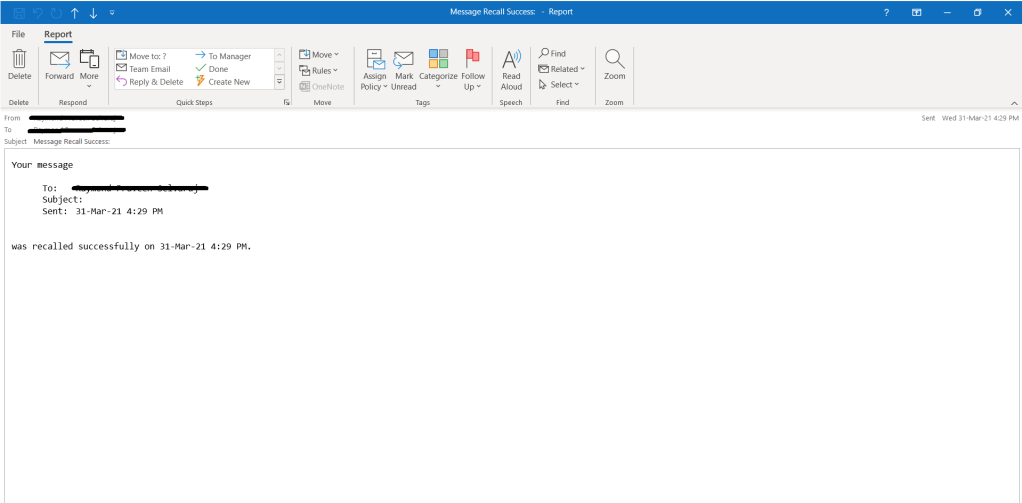
Thus by following these steps you can easily recall an email in Microsoft Outlook desktop application.




 Digiteks
Leave a comment