As Android users, you can now blur or change your background in Google Meet. You are attending your official conference call from your Android mobile and worried about your messy background? Do not worry now you can blur the background in Google Meet for Android. Last year desktop users were able to change or blur the backgrounds.
How to add a virtual background in Google Meet Android
Follow these steps to change your background before you make the call. Make sure you download the Google Meet app from Play Store and then install it.
Changing the background before making a video call in Google Meet
- Open the app and then select a meeting.
- Click ‘Change Background’ that is present on the bottom right of your self-view.
- Now, there are three options to customize your Google Meet background.
- You can completely blur your background by using the ‘Blur your Background’ option.
- Use ‘Slightly blur your background’ to blur your background marginally.
- Besides, you can also select a background from its preloaded collections.
- Further, you can also add your own image for your background by clicking the ‘Add’ option.
- So, choose any one of the above options to change your background and then click ‘Join Now’ to be a part of the meeting.
Changing the background during a video call in Google Meet
Many of us are in a hurry to join the meeting and we just join the meet directly. But after joining we notice the messy background, as we are working-from-home many would have experienced this scenario. So, is there any solution? Yes, you can also customize your background while you are on call.
- First, click on three dots or the more option.
- You will find the ‘Change background’ option.
- Now, you can choose any of the three options like,
- Blur your background.
- Slightly blur your background.
- Choose a pre-uploaded background.
- You can also add your own picture and then set it as your background.
But there are some requirements that you must check before availing of the background change option. Your device must have Android 9.0 Pie or new versions. Apart from this, your Android device should have at least 3GB RAM, 1.6GHz CPU clock speed, 4 CPU cores, and ARM64 architecture.
How to customize the background in Google Meet on PC
Many people who are working-from-home will attend meetings from their desktop. Be it Chrome or Edge you can change your background in video calls while using Google Meet.
Before a video call on PC
- First, open Google Meet in your browser and then select a meeting.
- Now, you will find the ‘Change Background’ icon that is present on the bottom right of your window.
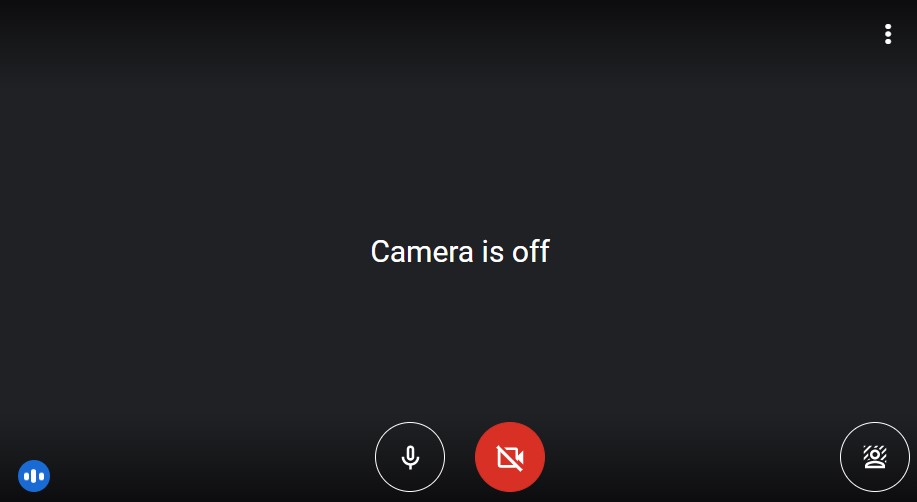
- Then, you can choose any of the three options available,
- Blur your background.
- Slightly blur your background.
- Choose a preloaded background from their gallery.
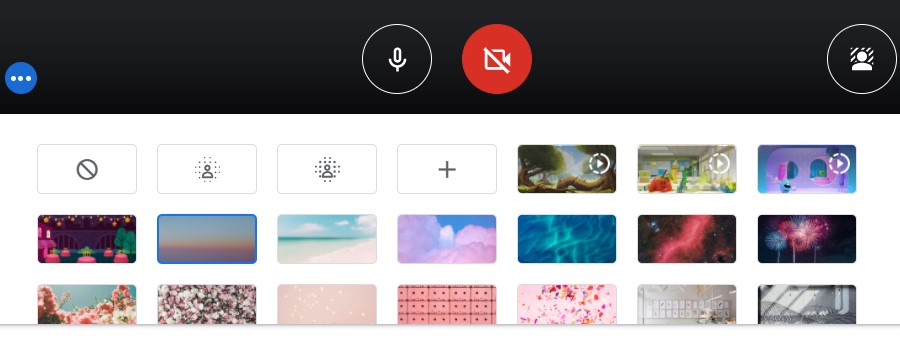
Google Meet also allows you to add a new image using the ‘+’ icon. Once you have selected your desired background you can join the call.
During a video call on PC
Now you are already on the call and you want to change your background.
- Use the more option which is the three dots icon. Then click ‘Change Background’.
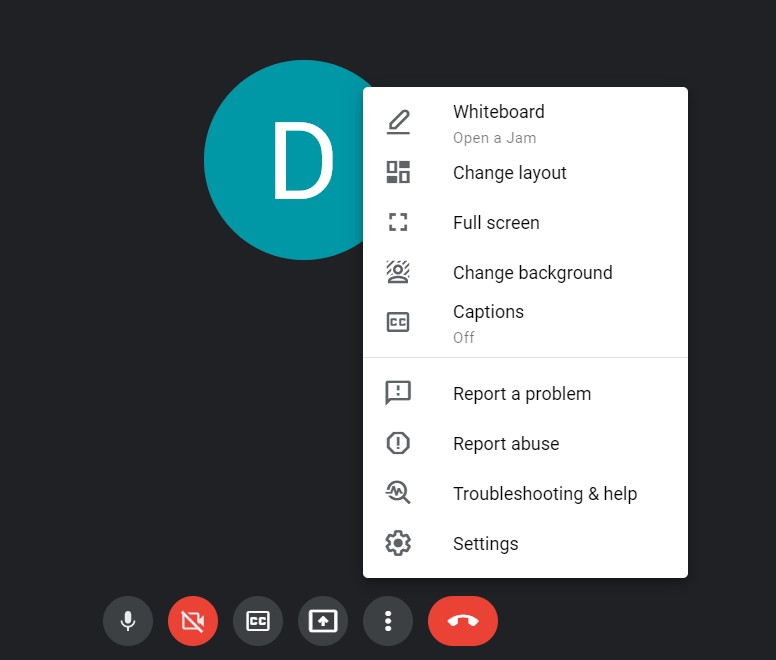
- Now you can see the same set of three options, blurring, slightly blurring, or choosing a pre-loaded picture as your background.
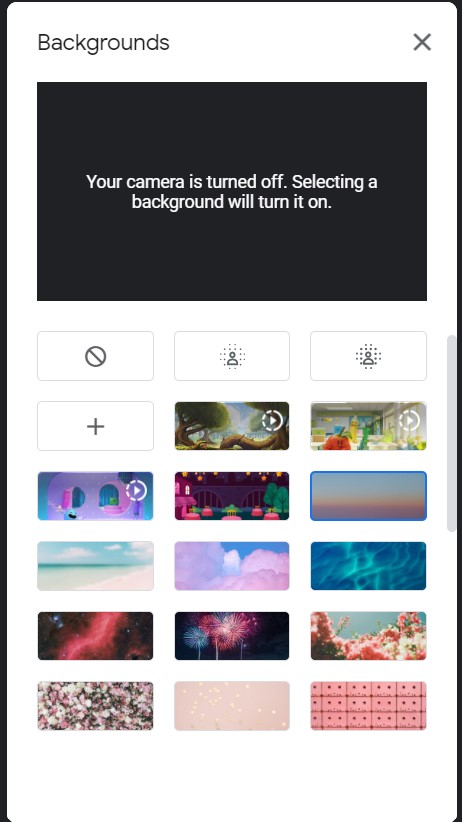
- You can click on the ‘+’ icon to add a new picture as your background.
But if you are using Google Meet for your school’s online classes then you cannot customize the background. So, changing the background is not possible if the meetings are conducted by education enterprises.
Now that you have read how to change the background in Google Meet click this link to know more about how to change the background while using Skype, Zoom, and Microsoft Teams.



 Digiteks
Leave a comment