
Apple’s creations are always unique and innovative. One such concept is the ‘Find My’ app. Find My was released together with iOS 13, 2019. It houses the functions of the earlier Find My Friends and Find My iPhone apps. If you have misplaced your iPhone, Apple watch or want to find an item to which you have connected your AirTags then this app comes to your rescue. So, in this blog, we will see how to use the Find My app and its features.
What are the devices you can locate using Find My?
Using this app, you can easily locate iPhone, iPod touch, iPad, Mac, Apple watch, AirPods, and AirTag.
Steps to turn on Find My for your iPhone, iPad, or iPod touch
- First, open ‘Settings’ then tap Find My.
- Share My Location- If you want your near and dear ones to know about your whereabouts then turn it ON.
- Then, tap Find My [any Apple device], and turn on Find My device.
- Find My network – Turning ON this option helps you to see your device when it is offline.
- Send Last Location – If you turn it ON, you can get the location of the lost device sent to Apple when the battery is low. So, in this case, you can locate the lost device even if it is switched off due to a drained battery.
- Further, you can also locate your lost devices on a map. For this purpose, you must turn ON Location Services. Go to settings—Privacy—Location Services and make sure it is turned ON.
If you have lost your Apple device, then you can use the Find My app from any of your family member’s Apple devices to locate your missing item.
Locating the lost Apple device on the map
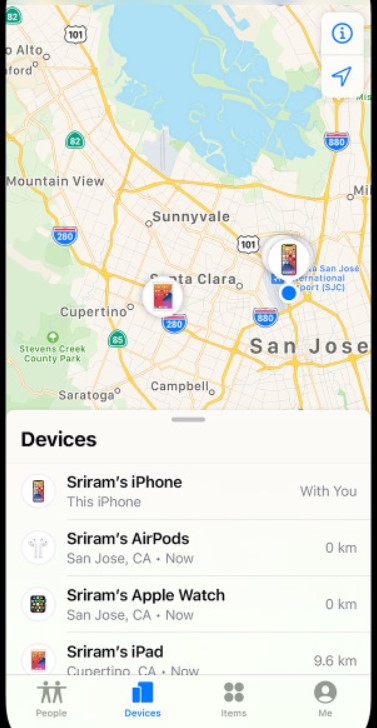
Open the Find My app and then select the Items or Devices tab. Then, you can choose Directions to open its location in Maps. The products that are compatible with this feature include the iPhone, iPod touch, iPad, Mac, Apple watch, AirPods, beats products and AirTag.
Play a sound to locate the lost device
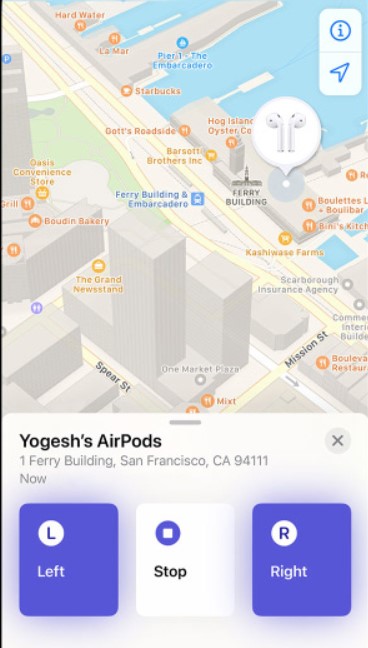
Let us consider the situation where you have found the location but still not able to spot your device. Your lost device might be under the table or stuck in between the couch. So, in this case, a sound might be helpful to find the exact location. Go to the Devices tab in the Find My app. Then, select your missing item or device and then choose ‘Play Sound’. In the case of AirTag, you must make sure it is within the Bluetooth range to play a sound.
How to display a message when someone finds your lost device
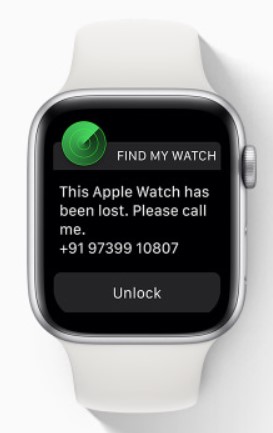
You can mark your device as lost or activate Lost Mode. These settings are in the Devices tab of the app. Then you can add your contact information along with a message. This can help the person who found your device to return it to you. Once you have provided the details, select Activate. Your message along with the contact details will be displayed on the lost device’s lock screen.
Can you erase the lost device?
Yes, Apple provides the option of erasing the contents of the lost device remotely. This option is helpful when you think your lost device is in the wrong hands. Now, that you have tried reaching your device using location, playing a sound, or marking it as lost but still your device is not found. Then you can use this option of erasing to make sure no one can use your confidential data in the lost device. Go to the Devices tab in the Find My app and select the lost device. Then choose the ‘Erase this Device’ option. Once you choose this option, all the personal data including your credit or debit card details will be erased. Further, you cannot track the lost device using the Find My app.
How to locate your friends?
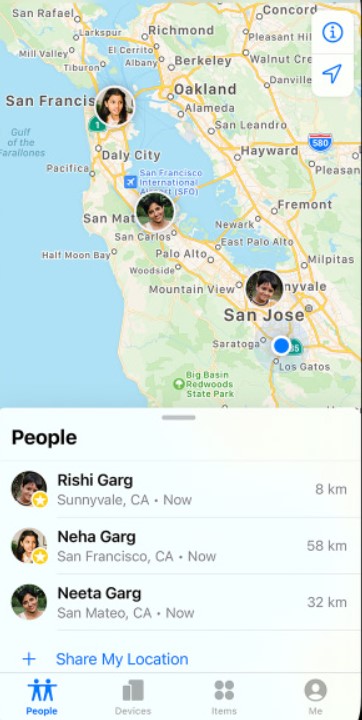
If your friends or family members have shared their location with you then you can easily find their location using this app. Go to the People tab to find the list of your dear ones and their location. Besides, you can also set up notifications while they leave or arrive at a particular spot.
Have you tried all this on your Apple devices?



 Digiteks
Leave a comment