Get ready to experience Windows 11!
Finally, after waiting for a long period, Microsoft is to announce an awaited moment. It is the release of the next generation of Windows after Windows 10 that is:” Windows 11”. On 24th June at a Big Microsoft Event, Microsoft CEO Satya Nadella announced Windows 11 as official and about the various features and facilities that Windows 11 supports.
If you are a Windows 11 checker you will be free for all Windows 10 users and includes a large number of new features and improvements over the current version of Windows. As Windows is one of the most-used operating systems for personal computers around the world, there’s a lot of reasons to inform you about what’s coming. Predictably, Microsoft is going to change the design to core Windows apps like the Microsoft Paint, Microsoft Photos app, and the Notepad.
From new features to security, and even new designs, Windows 11 is expected to be an important upgrade. Windows 11 is available on the play store for beta testing so you can download the early preview builds.
Here is the information you need to know about Windows 11 before installing it:
Windows 11 Release date
Microsoft announced that Windows 11 release in 2021 this year. They said that it will be released in the “holiday seasons.” Current rumors suggest that it will probably be released in October 2021. They don’t mention the fixed date but predictably it can be on 21 October 2021. It’s not confirmed as it can be released in 2021 but after coming into the market it needs to take time for the up-gradation of new functions and features.
Top Windows 11 Features
As we know that the new Windows 11 is the updated version of Windows 10 it is obvious that it will be having a new collection of features and functions. Windows 11 features are here:
● User Interface
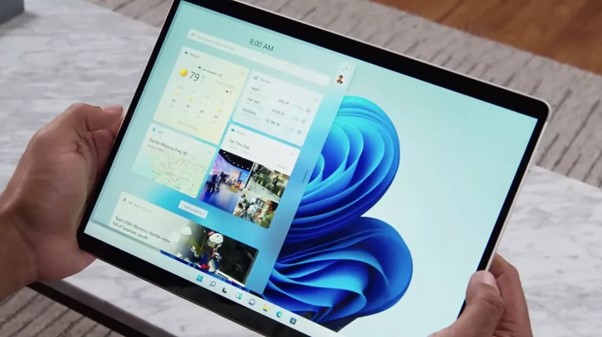
You can easily access the taskbar via touch as well as the mouse. It is user-friendly and will make your work easy for you.
● Dynamic Themes
Themes are the most basic necessity for users. Windows 11 provides you a large and dynamic collection of themes and they appear to have more effect on the style and overall look of your own Windows experience.
● A Refreshed Look
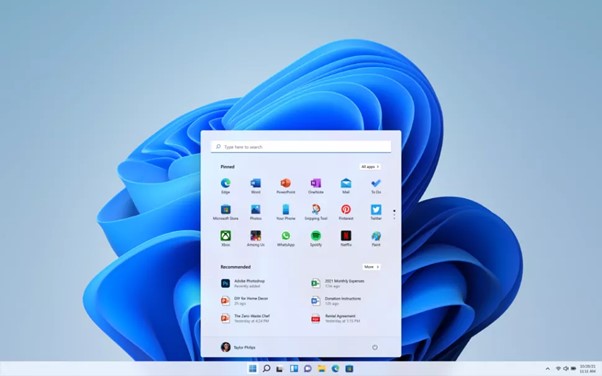
The new design also consists of a new home for the start menu. The Start button will now live in the center of the taskbar and the menu will pop up just above it. This new centralized location will be meant to deliver ease of use.
● New Microsoft Store
This Windows 11 PC offers you a wide variety of Android apps that makes you have enjoyable games and apps on PC too as it provides you its app store. It will ease you with your work as it makes you use apps on PC rather than phones.
● Teams Integration
Microsoft offers you the free Microsoft Teams app that helps you with easy text and communication functions which helps in the interaction of you with your family, friends, etc.
● Snap Layout
Microsoft eases your work with the up-gradation of snap layouts. It helps you to design the positions of the app on your desktop. It will also help you with the multitasking option and helps you to work with two apps simultaneously.
How to check if your PC will get Windows 11 Update
If you want to check if your PC will get Windows 11 or not you have to do a Windows 11 compatibility check. This compatibility check will help you to know whether Windows 11 will be updated on your PC or not.
To check about these details:
- You have to first install Microsoft’s PC Health Check Tool.
- Then, once installed you need to run the program
- You will see a blue color “Check now” button on the Windows 11 banner.
- You’ll get a pop-up notification on the PC stating that ” This PC will run Windows 11.”
How to download windows 11
Once you are done with the minimum requirements for the Windows 11 download, you can download it. Here are the steps:
- Go to the Settings and click on ‘Update & Security, and then ‘Windows Insider Program’ on Desktop.
- In the ‘Windows Insider Program’ window, you have to click ‘Get started’ to join.
- From the window that arises, click ‘Link an account and select your Microsoft Account and click ‘Continue’.
- Then ‘Pick your Insider settings’ page that appears, choose ‘Dev Channel’, then ‘Confirm’.
- You’ll then have to restart your PC. First, make clear everything is saved. Then click ‘Restart Now’ on the window that arises.
- Once you’ve restarted, open the Windows Update app. In the window that comes up, click ‘Check for updates. The Windows 11 Insider Preview form should appear, under ‘Select edition’ pick Windows 11 and you can download and install it as if it was a regular Windows 10 update.
How much does Windows 11 cost?
Microsoft announces that Windows 11 will be updated on the PC of the users of Windows 10. The price of Windows 11 for the new users will vary as each company will charge differently for their hardware.
Estimated it will cost as Windows 10 or a little more than that. If you wanna have a free download of Windows 11 on your PC, you should buy a new laptop or desktop containing the OS of Windows 10.
Conclusion
Now, having a glance at the pre-information about Windows 11, I hope you got an idea and a brief about the new features and functions of the new Windows 11. As you can have numerous facilities granted before the launch of Windows 11 from Microsoft and you can also enjoy updates that will be coming after the launch of Microsoft.
You can go through all the information and steps for getting Windows 11 downloaded on your PC and enjoy these amazing and helpful features of Windows 11. So, go with this amazing operating system and share your experience and suggestions with us in the comments. Enjoy it!!


 Digiteks
Leave a comment