
Google Photos is a google application where you can see all your photos, albums, movies, and so on with the latest features of editing, sending, etc. The Google Photos application is very popular, and several people are using it. It is a kind of backup application where people save their important data like pictures, videos, and many more.
In older times we have seen that people connect their mobiles to the system and make a particular folder where they copy all their images for backup. But nowadays people do not have a lot of time to spend on this folder. So, google gave them a mobile application Google photos backup for your cell phone inside data.
But sometimes, you want to free up spaces and must delete photos. In this article, you will be going through How can you delete your Images from Google Photos.
USES OF GOOGLE PHOTOS
Google Photo is a backup service provider where you can convert your photos into files, folders, or albums and where you can edit your images with some effects.
Google photos automatically get started by themselves according to date, year and it feels like a fresh application, where you can find your required data easily.
HOW TO FIND A PICTURE ON GOOGLE?
Most importantly when you are having pictures of a lot of people with you and want to get all the images to look ahead to your work. Then it has such a tremendous option in google photos that it reveals a different circle icon with a specific person’s face. When you click on that circle you will have a complete file.
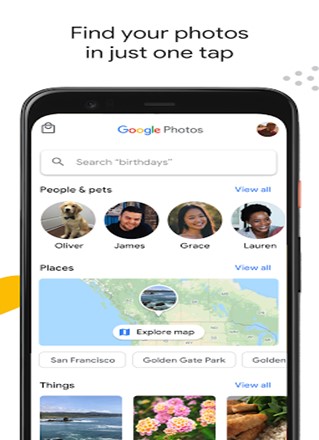
It doesn’t mean that your actual photo album will transform. During an emergency when you are looking forward to glancing at your loved ones’ picture soon then here, we get it on the mark.
As you are the youth, photos are an essential part, and you are not able to manage the time to maintain your photos collection that is eased by Google Photos.
USES OF GOOGLE IMAGE
Google Photos is nothing but another name for the Google Drive application. It is commonly used for pictures or drive applications to send it quickly so in that case Google Drive is mostly used.
Google Drive does not support characteristics like google photos like editing or modifying it. If it is for sending any office material type data, then the Google Drive application is one best app to be accessed at that time.
Generally, google drive has 25 GB of appropriate storage. For functioning on Google Drive firstly you need to have a google account.
You can also use a web browser to access your files on google drive. This app has different options like download, delete, upload all kinds of categories of images. If you need to edit your format into Google Drive, then you must convert your file to a formally Google drive data type. Google Image is a very useful application.
GOOGLE PHOTOS BACKUP
As in your daily lives, you gather a lot of memories to be kept ever after, and luckily Google Photos gives you an option of daily backup where all data gets secure, and you can watch them anytime. Now how can you check your backup as:
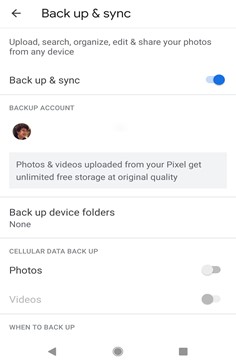
- Very first we need to open our google photos
- Then at the very top of the page, you will be able to look at your My Google photos or our most recent clicked view
- Then, at last, you must press back up and leave.
NOTE: – If you have more than one account then don’t forget to get a switch on the account that you needed or required at the time.
Google Photos automatically give you a backup of your photos.
HOW TO DELETE PHOTOS FROM GOOGLE PHOTOS WITHOUT DELETING THEM FROM YOUR PHONE?
Normally Google Photos is a very significant application not required in one side of view. So generally, you wish to delete all photos from Google Images and you expect nothing to be left. So, this starts as:
- Firstly, in your system or mobile, you need to open a Google Photos app.
- On the screen left menu option will appear all select then
- You must select the device folders, images, and albums that you prefer to delete.
- For selecting a picture, you need to tightly press on the middle of one pic and gently press on another image.
- Then on the top, you see a menu option click it a small window appears
- Then select the remove option from the device hence all your photos are deleted.
Through this procedure, you can delete all google photos of yours.
HOW TO PERMANENTLY DELETE GOOGLE PHOTOS?
Google Photos is a very simple and effective application. All further steps to delete google photos will work but sometimes photos get moved to the trash bin. For permanently deleted Google Photos:
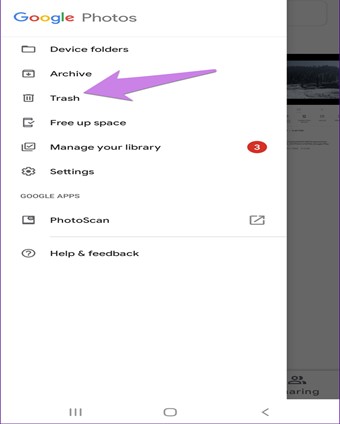
- Open the google photos application on your phone.
- Then moved the trash bin option.
- Then select the images from the bin option that you want to delete permanently.
- Or if you want the file to be completely deleted, click the icon of the empty bin that shows on your screen.
- As you touch up an empty bin option for your photos will be deleted permanently.
By following these steps, you can delete all Google Photos.
HOW TO DELETE A GOOGLE PHOTOS ACCOUNTS?
Usually, you don’t need to delete your Google account permanently. You can also find pictures on Google. Whereas sometimes you need to delete accounts. Now, you are going to pass across the easiest ways to do so, that follows:
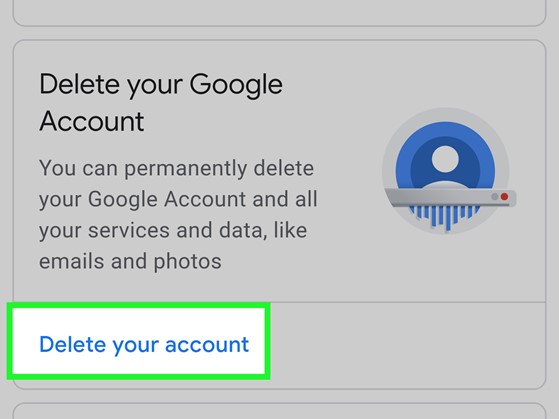
- So, first step is to log out from a google photos account
- Then, once you’re removed from the one Google account, you also must log out from another Google accounts as well,
- Next you must click on the three-bar icon, where you must go from manage accounts,
- Then their remove option will be seen, click on that, hence your account delete permanently.
And at last, you need to uninstall the google photos application. Hence your account will be removed or deleted permanently.
Conclusion
Google Photos are an incredible source for storing photos. You can have easy and free access through your Google account for the signup in Google Photos. Google Images are saved as original when you store them.
Now, knowing all the basic functionalities and knowledge about this Google Application, you can store all your important images and pictures in that app. You can store and access them anytime. Let us know in the comments if something missed out. Leave your precious words in our comments. Enjoy your memories!!


 Digiteks
Leave a comment